Manual · HP
Getting Started with Your Tungsten T5 Handheld
Manual172 pagesPDF 2.5 MB
Getting started guide for the palmOne Tungsten T5 handheld: controls, synchronizing, built-in applications, Bluetooth and expansion cards.
Covers · 2 models
The models it covers
Summary
What is in it
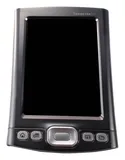
The palmOne getting started guide for the Tungsten T5 handheld. It shows the controls and the 5-way navigator, how to enter information, find files and applications, and move information between the handheld and a computer (synchronizing, File Transfer, Drive Mode). Chapters then cover Contacts, Calendar, Office files, photos and videos, music, tasks, memos and Note Pad, Bluetooth wireless connections, email, text messages, web browsing, expansion cards, customizing the handheld and common questions.
Its parts
- Basics
- Finding and Opening Files and Applications
- Moving and Managing Info Between Your Handheld and Your Computer
- Managing Your Contacts
- Managing Your Calendar
- Managing Your Office Files
- Viewing Photos and Videos
- Listening to Music
- Managing Your Tasks
- Writing Memos
- Writing Notes in Note Pad
- Making Wireless Connections
- Sending and Receiving Email Messages
- Sending and Receiving Text Messages
- Browsing the Web
From the manual
Key facts from this manual
Each line names its page in the PDF.
Getting Started guide (version 1.1) from palmOne for the Tungsten T5 handheld, a Palm OS organizer with built-in Bluetooth. It shows the controls, the preinstalled and CD software, how to move files and synchronize with a computer, wireless connections, expansion cards and answers to common problems. The maker named in the guide is palmOne.
- Device
- Palm OS handheld organizer (PDA) with a touch-sensitive screen; text entry by Graffiti 2 writing or an onscreen keyboard p. 10, 11, 36
- Memory
- 55MB program memory for Palm OS applications and a 160MB internal flash drive that keeps data even if the battery drains p. 36
- Wireless
- Built-in Bluetooth for devices within approximately 30 feet; IR port for beaming p. 12, 13, 101
- Expansion cards
- SDIO, SD and MultiMediaCard p. 131
- Connectors
- Multi-connector for the USB sync cable (included), a cradle (sold separately) or the AC charger; 3.5 mm stereo headphone jack; reset button p. 12, 13
- Charging
- Supplied AC charger only, directly or through the USB sync cable; recharge at least half an hour every day p. 13, 28, 148
- Controls
- 5-way navigator; quick buttons that turn it on and open Favorites, Calendar, Contacts or Files; power button; stylus p. 11, 12
- Built-in applications
- Calendar, Contacts, Documents (Word and Excel editing, PowerPoint viewing), palmOne Media, RealPlayer, VersaMail, Web, SMS, Tasks, Memos, Note Pad, Drive Mode and more p. 14, 15
- Desktop software
- Palm Desktop, palmOne Quick Install and File Transfer (Windows only), Send To Handheld droplet (Mac only); optional sync with Microsoft Outlook (Windows only) p. 16, 17
- Drive Mode
- The handheld appears as an external removable drive on computers that support one, such as Windows 2000, Windows XP and Mac OS X p. 49
What this manual walks you through
- Locating the controls on the front, top, side and back panels p. 11, 12, 13
- Installing desktop and extra handheld software from the CD p. 16, 17, 18
- Using Drive Mode to move files on another computer p. 49, 50
- Choosing a Bluetooth connection to a phone, computer, access point or printer p. 100, 101
- Using expansion cards for backup, software and accessories p. 130, 131
- Upgrading from another Palm Powered device p. 146
- Saving battery life p. 148
- Fixing synchronization and File Transfer problems p. 148, 149
- Doing a soft reset when the handheld stops responding p. 150
Good to know
- Do not open the handheld: there are no serviceable parts inside. p. 150
- Keep the handheld away from very hot or cold places, water and damp, and use only 3.5 mm stereo headphones. p. 28
- While Drive Mode is on, no other feature of the handheld can be used. p. 49
- Files and File Transfer show only the internal drive, so a file placed in program memory by Quick Install does not appear there. p. 151
- Changes made on the handheld to a file sent with File Transfer are not synchronized back; copy the file back with File Transfer. p. 151
Questions this manual answers
How much memory does the Tungsten T5 have?
55MB of program memory for Palm OS applications plus a 160MB internal flash drive. p. 36
What memory cards work in the Tungsten T5?
SDIO, SD and MultiMediaCard expansion cards. SD and MultiMediaCard store data and applications; SDIO cards add accessories. p. 131
Does the Tungsten T5 lose its data when the battery runs flat?
No. The memory keeps your information even if the battery drains so far that the handheld will not turn on; recharge it and the data returns. p. 147
How do I reset a frozen Tungsten T5?
First check that Keyguard is off. Then use the reset tool in the top of the stylus to press the reset button on the back panel. p. 150
How does the Tungsten T5 get on the internet?
Over Bluetooth, through a mobile phone, a desktop computer's network connection or a Bluetooth LAN access point. p. 101
Contents
Chapters and sections
Each line opens the PDF at its page.
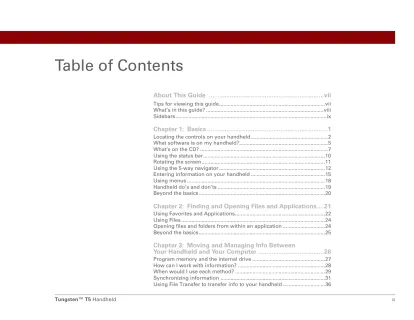
- Getting Started with Your Tungsten™ T5 Handheld1
- About This Guide7
- Basics10
- Finding and Opening Files and Applications30
- Moving and Managing Info Between Your Handheld and Your Computer35
- Managing Your Contacts53
- Managing Your Calendar59
- Managing Your Office Files65
- Viewing Photos and Videos69
- Listening to Music78
- Managing Your Tasks87
- Writing Memos92
- Writing Notes in Note Pad96
- Making Wireless Connections100
- Sending and Receiving Email Messages113
- Sending and Receiving Text Messages123
- Browsing the Web127
- Expanding Your Handheld130
- Customizing Your Handheld135
- Common Questions146
- Product Regulatory Information153
- Index159
The whole text · 18 parts
Read the manual here as text
Its text as extracted from the PDF, unedited, in parts; each page opens the PDF at that page.
- Pages 1 to 101-10
- Pages 11 to 2011-20
- Pages 21 to 3021-30
- Pages 31 to 4031-40
- Pages 41 to 5041-50
- Pages 51 to 6051-60
- Pages 61 to 7061-70
- Pages 71 to 8071-80
- Pages 81 to 9081-90
- Pages 91 to 10091-100
- Pages 101 to 110101-110
- Pages 111 to 120111-120
- Pages 121 to 130121-130
- Pages 131 to 140131-140
- Pages 141 to 150141-150
- Pages 151 to 160151-160
- Pages 161 to 170161-170
- Pages 171 to 172171-172
The file