Manual · HHP
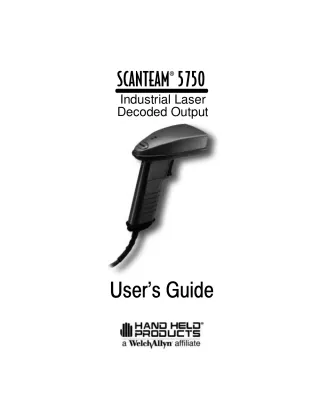
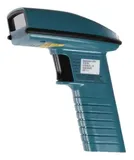
SCANTEAM 5750 Industrial Laser Decoded Output User's Guide
Manual92 pagesPDF 656 KB
User's guide for the Welch Allyn SCANTEAM 5750 industrial laser bar code scanner (5750A, 5750HD, 5750ALR): setup and programming.
Covers · 1 model
The models it covers
Summary
What is in it
User's guide for the SCANTEAM 5750 industrial decoded-output laser scanner, in its 5750A, 5750HD and 5750ALR versions. It shows how to identify and connect the scanner, then programs it by scanning bar codes: plug and play and terminal selections, prefixes and suffixes, output and serial settings, data formatting, laser and wand emulation options, keyboard settings and symbologies. It also covers the firmware utilities, interface keys, product specifications, maintenance and troubleshooting.
Its parts
- Introduction & Quick Start Menu
- Output Parameters Menu
- General Operating Menu
- Symbology Menu
- Firmware Utility Menu
- Supported Interface Keys
- Product Specifications
- Maintenance and Troubleshooting
- Customer Service
From the manual
Key facts from this manual
Some pages are scans or cannot be read; this says only what the readable text supports. Each line names its page in the PDF.
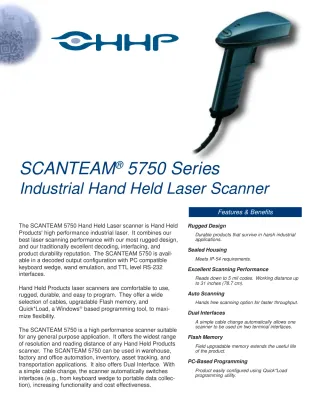
User's guide for the SCANTEAM 5750, an industrial handheld laser scanner with decoded output, in its 5750A, 5750HD and 5750ALR versions. It shows how to connect the scanner, program it for a keyboard wedge, RS-232 or wand emulation host, load new firmware, and fix common reading problems.
- Device
- Industrial handheld laser scanner with decoded output p. 1
- Engine versions
- A standard performance, HD high density, ALR long range p. 10
- Interfaces
- Keyboard wedge, TTL RS-232 or wand emulation, set by interface option p. 10
- Symbologies
- Decodes 14 industry-standard bar code symbologies p. 9
- Power
- 5VDC, 200 mA maximum p. 73
- Low power mode
- Under 50 uA when the trigger is not pulled (switched power mode) p. 19
- Light source
- 630 to 670 nm visible laser diode p. 73
- Scan rate
- 36 ±3 scans per second p. 73
- Operating temperature
- 32° F to +122° F (0° C to +50° C) p. 73
- Storage temperature
- –22° F to +158° F (–30° C to +70° C) p. 73
- Humidity
- 5 to 95% non-condensing p. 73
- Drop rating
- 26 drops from 6 feet (1.8m) to concrete p. 73
- Firmware
- Flash EEPROM, upgraded with Quick*Load from a download kit; cloning from a master unit by cable p. 63, 64
- Auto trigger option
- Hands free auto trigger when the scanner sits in the Document Stand p. 10
What this manual walks you through
- Connecting the scanner to a terminal or computer p. 11
- Plug and Play setup for IBM PC and RS-232 hosts p. 15
- Programming a terminal by its Terminal I.D. p. 16
- Resetting factory settings and showing the software revision p. 17
- Choosing wand emulation or RS-232 output p. 18
- Switching between low power and constant power modes p. 19
- Downloading new firmware and cloning scanners p. 63, 64
- Cleaning the scan window and inspecting cables p. 75
- Troubleshooting reading and output problems p. 76, 77
Good to know
- The housing is not water-tight; do not submerge the scanner. p. 75
- Never use solvents such as alcohol or acetone on the housing or window. p. 75
- There are no serviceable parts inside; do not open the scanner. p. 75
- MSI and Plessey are off by default and must be enabled one by one. p. 77
- The manual states the 5750ALR is a Class III laser device. p. 73
Questions this manual answers
What power does the SCANTEAM 5750 need?
It runs on 5VDC and draws at most 200 mA. p. 73
How do I update the SCANTEAM 5750 firmware?
Scan the Download New Firmware bar code and use the Quick*Load software from the download kit. Updated firmware can also be cloned from a master unit by cable. p. 63, 64
Why does a scanned bar code show on screen but not get entered?
The scanner needs a suffix, such as a carriage return, so it sends the key that enters the data. p. 76
How do I reset the SCANTEAM 5750 to factory settings?
Scan the Factory Default Settings bar code, which clears any programming changes. p. 17
Why does the host show wrong characters when I scan?
The scanner may be set for the wrong terminal interface; reprogram it with the right Plug and Play or terminal bar code. p. 77
Contents
Chapters and sections
Each line opens the PDF at its page.
- Disclaimer2
- Statement of Agency Compliance3
- Introduction9
- Output Parameters Menu21
- General Operating Menu39
- Symbology Menu47
- Firmware Utility Menu63
- Supported Interface Keys67
- Product Specification/Pinouts73
- Maintenance/Troubleshooting75
- Customer Support79
- Warranty81
- Default Chart83
- Programming Chart91
- Sample Bar Codes92
The whole text · 13 parts
Read the manual here as text
Its text as extracted from the PDF, unedited, in parts; each page opens the PDF at that page.
- Pages 1 to 41-4
- Table of Contents5-8
- Introduction9-20
- Output Parameters Menu, pages 21 to 2921-29
- Output Parameters Menu, pages 30 to 3830-38
- General Operating Menu39-46
- Symbology Menu, pages 47 to 5447-54
- Symbology Menu, pages 55 to 6255-62
- Firmware Utility Menu63-66
- Supported Interface Keys67-72
- Pages 73 to 7873-78
- Pages 79 to 8279-82
- Pages 83 to 9283-92
The file