Manual · Handspring
Visor Handheld User Guide
Manual282 pagesPDF 3.0 MB
User guide for the Handspring Visor handheld: setup, Graffiti data entry, the basic applications, HotSync and preferences.
Covers · 1 model
The models it covers
Summary
What is in it
The user guide for the Handspring Visor handheld computer. It explains the buttons and controls, installing the batteries, connecting the cradle and installing Palm Desktop software, entering data with Graffiti writing or the onscreen keyboard, and managing and securing applications. It then covers Date Book, Address Book, To Do List, Memo Pad, Calculator, CityTime and Expense, communicating with the handheld, advanced HotSync operations and preferences, with appendices on maintenance and troubleshooting.
Its parts
- About This Guide
- Introduction to Your Visor Handheld
- Entering Data in Your Visor Handheld
- Managing Your Applications
- Overview of Basic Applications
- Common Tasks
- Application Specific Tasks
- Communicating Using Your Handheld
- Advanced HotSync Operations
- Setting Preferences for Your Handheld
From the manual
Key facts from this manual
Each line names its page in the PDF.
Handspring's Visor Handheld User Guide for the Visor handheld computer, which runs Palm software and synchronizes with a desktop computer through a cradle. It walks through first setup, batteries, connecting the cradle and installing Palm Desktop software, Graffiti writing, Springboard modules, care of the unit, resetting and troubleshooting.
- Device
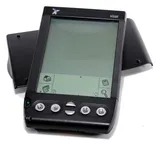
- Handheld computer with touch-sensitive screen, stylus and Graffiti writing area p. 14
- Batteries
- Two AAA alkaline batteries (alkaline only), several months of normal use p. 18, 226
- Connector
- USB and serial connector to the cradle, which plugs into a computer's USB or serial port p. 17
- Serial cradle
- Needed with no USB port, or with Windows 95, Windows NT, or MacOS 8.0 or earlier p. 30
- IR port
- Infrared port to send and receive data with other Palm Computing platform devices p. 17
- Expansion slot
- Springboard expansion slot for plug-in modules p. 17, 32
- Controls
- Power button (hold about two seconds for backlight), contrast control, scroll buttons, four application buttons, microphone p. 14, 15
- Windows needs
- Windows 98 or later (USB cradle) or Windows 95 or NT 4.0 (serial cradle); 486 or higher, 8 MB RAM minimum (16 MB recommended), 25 MB disk, CD-ROM drive p. 12
- Macintosh needs
- MacOS 8.1 or later (USB cradle) or MacOS 7.53 or later (serial cradle); PowerPC processor, 8 MB RAM minimum, 25 MB disk p. 12
- Desktop software
- Palm Desktop on CD-ROM; synchronizes with Microsoft Outlook on Windows; other PIMs through a conduit p. 2, 31
- Memory backup
- Built-in backup power keeps memory up to one minute with batteries out; drained batteries keep data about a month p. 226
- Application buttons
- Date Book, Address Book, To Do List, Memo Pad p. 15
- Auto-off
- After one, two or three minutes of inactivity p. 232
- Optional equipment
- Modem, such as a Springboard modem; Springboard expansion modules p. 12
What this manual walks you through
- Upgrading from another Palm handheld without losing data p. 13, 14
- Using the backlight and the protective cover p. 16
- Installing the batteries p. 18
- Connecting the cradle and installing Palm Desktop software p. 30, 31
- Synchronizing with Microsoft Outlook or another PIM p. 31
- Installing a Springboard module p. 32
- Caring for the handheld and prolonging battery life p. 225, 226
- Performing a soft or hard reset and restoring data afterward p. 227, 228, 229
- Troubleshooting power, screen, memory, handwriting and HotSync problems p. 231, 232, 233, 234, 235, 236
Good to know
- The handheld is not waterproof and should be kept out of rain and moisture. p. 225
- Use only the stylus point on the screen, never a pen, pencil or other sharp object. p. 19
- Turn the handheld off before changing batteries, and use only alkaline batteries. p. 226
- Drained batteries left in the handheld for a long time can lose all stored data. p. 226
- A hard reset erases all records and entries; try a soft reset first. p. 228
Questions this manual answers
What batteries does the Handspring Visor use?
Two AAA alkaline batteries behind the battery door on the back; the guide says to use only alkaline batteries. p. 18, 226
How do I reset a frozen Handspring Visor?
Do a soft reset by gently pressing the reset button in the hole on the back panel with an unfolded paper clip; records are kept. p. 227
Do I need a serial cradle for my Visor?
Yes, if your computer has no USB port or runs Windows 95, Windows NT, or MacOS 8.0 or earlier. p. 30
Why won't my Visor HotSync?
Check that HotSync Manager is running, that Local USB (or Local Serial with the right COM port) is checked, that the cradle is connected securely and is the right type, then try a soft reset. p. 235
How long does the Visor keep its data when the batteries are removed?
Its backup power keeps memory for up to one minute, so replace the batteries immediately. p. 226
Contents
Chapters and sections
Each line opens the PDF at its page.
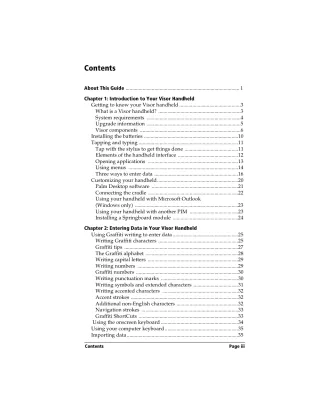
- Visor™ Handheld User Guide1
- About This Guide9
- Introduction to Your Visor Handheld11
- Entering Data in Your Visor Handheld33
- Managing Your Applications45
- Overview of Basic Applications55
- Common Tasks65
- Application Specific Tasks87
- Communicating Using Your Handheld157
- Advanced HotSync® Operations185
- Setting Preferences for Your Handheld199
- Maintaining Your Handheld225
- Troubleshooting Tips231
- Creating a Custom Expense Report243
- Non-ASCII Characters for Login Scripts255
- Warranty and Other Product Information257
- Index271
The whole text · 29 parts
Read the manual here as text
Its text as extracted from the PDF, unedited, in parts; each page opens the PDF at that page.
- Pages 1 to 101-10
- Pages 11 to 2011-20
- Pages 21 to 3021-30
- Pages 31 to 4031-40
- Pages 41 to 5041-50
- Pages 51 to 6051-60
- Pages 61 to 7061-70
- Pages 71 to 8071-80
- Pages 81 to 9081-90
- Pages 91 to 10091-100
- Pages 101 to 110101-110
- Pages 111 to 120111-120
- Pages 121 to 130121-130
- Pages 131 to 140131-140
- Pages 141 to 150141-150
- Pages 151 to 160151-160
- Pages 161 to 170161-170
- Pages 171 to 180171-180
- Pages 181 to 190181-190
- Pages 191 to 200191-200
- Pages 201 to 210201-210
- Pages 211 to 220211-220
- Pages 221 to 230221-230
- Pages 231 to 240231-240
- Pages 241 to 250241-250
- Pages 251 to 260251-260
- Pages 261 to 270261-270
- Pages 271 to 280271-280
- Pages 281 to 282281-282
The file