Manual · Fujitsu
PenCentra 130 User's Guide
Manual116 pagesPDF 1.4 MB
User's guide for the Fujitsu PenCentra 130 H/PC Pro, a Windows CE pen tablet: setup, applications, care and troubleshooting.
Covers · 1 model
The models it covers
Summary
What is in it
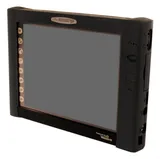
The user's guide for the Fujitsu PenCentra 130 Handheld Personal Computer Pro, an enterprise pen computer running Microsoft Windows CE. It introduces the hardware, connectors and options, then covers setup, pen calibration, PC cards, battery and power, the Windows CE Pocket Office and Pocket Outlook programs, remote and network connections, Windows CE Services synchronization, the productivity package (handwriting recognition, QuickNotes, bFAX, bFIND), care and maintenance, troubleshooting and hardware specifications.
Its parts
- Before You Get Started
- Introducing the PenCentra 130 H/PC Pro
- Using the PenCentra 130
- Using Microsoft CE Applications
- Using the PenCentra 130 Productivity Package
- Care and Maintenance of the PenCentra 130
- Troubleshooting the PenCentra 130
From the manual
Key facts from this manual
Each line names its page in the PDF.
User's guide for the Fujitsu PenCentra 130, a pen-based handheld PC (H/PC Pro) running Microsoft Windows CE. It explains the hardware, setup, power, connectors, bundled software, care and troubleshooting. An appendix gives the hardware specifications, and an early page lists optional accessories with part numbers.
- Device
- Pen-based handheld PC (H/PC Pro) running Microsoft Windows CE p. 15
- Processor
- NEC VR4121-131 at 131 MHz p. 97
- Memory
- 16 MB RAM on main board (48 MB maximum); 24 MB masked ROM; 8 MB flash ROM (16 MB maximum) p. 97
- Display
- 8" VGA (640 x 480), 256 colors; indoor/outdoor color-reflective DSTN or indoor-only color transmissive DSTN p. 97
- Ports
- USB host (Type-A), PS/2-style keyboard (6-pin DIN), RS-232C serial (DB-9), RJ-11 modem jack, DC power p. 98
- PC Card slots
- Two Type II, PCMCIA version 2.1, 5 V/3.3 V, 500 mA maximum p. 22, 98
- Modem
- Internal 56 Kbps (V.90/K56 Flex) data/fax modem with RJ-11 jack, North America only p. 98
- Infrared
- IrDA version 1.1 (FIR, 4 Mbps) p. 98
- Main battery
- Removable lithium ion, 10.8 V @ 1300 mAh, recharge 90 minutes to 90%; spare pack FMW51BP1 p. 16, 99
- Backup battery
- Internal NiMH, 3.6 V @ 70 mAh p. 100
- Size and weight
- 8.9" x 6.5" x 1.3" (226mm x 165.5mm x 33.6mm); 2 lbs. (.91 kg) with battery p. 97
- Accessories
- Docking Station FMW51DS1, External Battery Charger FMW51BC1, Auto Adapter FMWCB2, Spare Pen FMW51PN1 p. 16
- Memory modules
- 16MB RAM FMW51EM16, 32MB RAM FMW51EM32, 8MB Flash ROM FMW51FL8 p. 16
- Software
- Windows CE with Pocket Access, Pocket Excel, Pocket PowerPoint and Pocket Word p. 24
What this manual walks you through
- Reading the notification, DC input and battery status lights p. 21
- Inserting and removing PC Cards p. 31
- Removing and installing the battery pack p. 32
- Charging the battery and saving battery power p. 33
- Attaching a keyboard or mouse and using the function key shortcuts p. 34
- Setting up Windows CE Services to synchronize with a desktop or laptop p. 11
- Fixing a unit that will not resume or a blank screen p. 93
- Fixing infrared transfer, pen and keyboard problems p. 94
- Fixing modem dial-out and remote connection problems p. 95, 96
Good to know
- The internal modem is only on North American models. p. 23
- Suspend the unit before connecting a device to the PS/2-style port; the port takes 5 V devices only. p. 19, 23
- Only USB devices with Windows CE 2.11-compliant drivers work in the USB port. p. 19
- Pin 9 of the built-in serial port supplies 5 V at up to 500 mA; pin 9 on the optional docking station serial port does not. p. 98
- Infrared transfer needs a clear line of sight, a distance under 3 feet but over two inches, and no more than 15 degrees off center. p. 94
Questions this manual answers
What battery does the PenCentra 130 use?
A removable lithium ion pack rated 10.8 V @ 1300 mAh. The spare pack is FMW51BP1 and the external charger is FMW51BC1. p. 16, 99
How much memory does the PenCentra 130 have?
16 MB of RAM on the main board (48 MB maximum) and 8 MB of flash ROM (16 MB maximum). RAM modules are FMW51EM16 (16MB) and FMW51EM32 (32MB). p. 16, 97
How do I connect a keyboard or mouse to the PenCentra 130?
Suspend the unit, plug the keyboard or mouse into the PS/2-style port on the right side, then resume. The port supports 5-volt devices. p. 23, 34
Why is the PenCentra 130 screen blank?
The backlight time-out may have expired (tap the screen), or brightness may be too low or contrast set to an extreme; adjust them with the hotpads. p. 93
What processor and screen does the PenCentra 130 have?
An NEC VR4121-131 at 131 MHz and an 8" VGA (640 x 480) color DSTN display with 256 colors. p. 97
Contents
Chapters and sections
Each line opens the PDF at its page.
- Copyright 1999 Fujitsu Personal Systems, Inc.4
- Before You Get Started11
- Chapter 115
- Introducing the PenCentra 130 H/PC Pro15
- Chapter 227
- Using the PenCentra 13027
- Chapter 337
- Using Microsoft CE Applications37
- Chapter 471
- Using the PenCentra 130 Productivity Package71
- Chapter 589
- Care and Maintenance of the PenCentra 13089
The whole text · 16 parts
Read the manual here as text
Its text as extracted from the PDF, unedited, in parts; each page opens the PDF at that page.
- Pages 1 to 31-3
- Copyright 1999 Fujitsu Personal Systems, Inc.4-10
- Before You Get Started11-14
- Chapter 115-26
- Chapter 227-36
- Chapter 3, pages 37 to 4537-45
- Chapter 3, pages 46 to 5446-54
- Chapter 3, pages 55 to 6355-63
- Chapter 3, pages 64 to 7064-70
- Chapter 4, pages 71 to 7971-79
- Chapter 4, pages 80 to 8880-88
- Chapter 589-92
- Chapter 693-96
- Appendix A97-100
- Appendix B101-106
- Appendix C107-116
The file