Manual · Datalogic
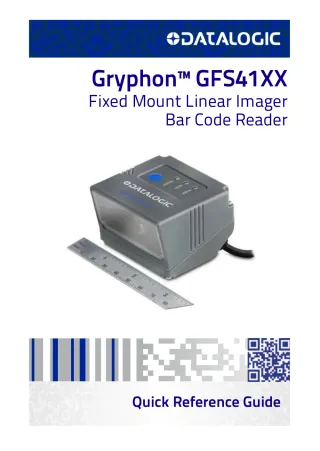
Gryphon GFS4XXX Fixed Mount Linear Imager Bar Code Reader Quick Reference Guide
Manual32 pagesPDF 1.1 MB
Quick reference guide for the Datalogic Gryphon GFS4170 (USB) and GFS4150-9 (RS-232) fixed-mount linear imagers: setup, modes, specs.
What this file really is
The old site listed this file as a manual for the Datalogic GFS4450 and GFS4470. The file is named as a GFS4450 user manual, but it is the quick reference guide for the Gryphon GFS4XXX fixed-mount imagers GFS4170 and GFS4150-9, and it never mentions the GFS4450 or GFS4470.
Filed with · 2 models
Also filed with these models on the old site
Summary
What is in it
The quick reference guide for the Datalogic Gryphon GFS4XXX fixed-mount linear imager, a self-contained 1D scanning module for kiosks and other semi-automated equipment. It covers the two models, GFS4170 (USB) and GFS4150-9 (RS-232), with interface selection bar codes, the mounting bracket, operating and exposure modes, technical features and RS-232 connections, LED and beeper indications, ergonomic and regulatory information, and the warranty.
Its parts
- Gryphon GFS4XXX Fixed Mount Linear Imager Bar Code Reader
- Setting Up the Reader
- Programming
- Technical Features
- LED and Beeper Indications
- Ergonomic Recommendations
- Regulatory Information
- Reader Labeling
- Services and Support
From the manual
Key facts from this manual
Each line names its page in the PDF.
This is the quick reference guide for the Datalogic Gryphon GFS4XXX fixed mount linear imager, which covers the GFS4170 (USB) and GFS4150-9 (RS-232) models and does not name the GFS4450 or GFS4470. It shows how to select the interface, mount the reader, set operating and exposure modes with programming bar codes, wire the RS-232 connector, and read the LEDs, with full technical features.
- Device
- Fixed mount linear CCD imager, a self-contained 1D bar code scanning module for kiosks and other semi automated equipment p. 9
- Interfaces
- GFS4150-9: RS-232 Standard, 9 pin connector; GFS4170: USB COM Standard or USB Keyboard p. 9, 17
- Power
- 5 VDC ± 5%; input current at 5V 390 mA (max); GFS4170 under 2.5 mA in USB suspend p. 16
- Scan rate
- 320 scans/s (max) p. 17
- Light source
- Dual red LEDs, 620 nm p. 17
- Depth of field
- 5 mil 2" to 6.3" (5cm to 16cm); 8 mil 1.2" to 10.6" (3cm to 27cm); 13 mil EAN 1.2" to 15.7" (3cm to 40 cm); 20 mil up to 23.6" (60 cm) p. 17, 18
- Codes read
- UPC/EAN/JAN, Code 39, Code 39 CIP, Code 128, I 2 of 5, Standard 2 of 5, Codabar, GS1 - 128, Code ISBT 128, MSI, Plessey, DATABAR, Code32 p. 17
- Angle tolerance
- Roll ± 35°; pitch ± 65° (avoid zero angle, ± 6°); skew ± 65° p. 17
- Minimum element width
- 3 mil; print contrast minimum 15% reflectance p. 17
- Temperature
- Operating 32° to 122° F (0° to 50° C); storage -13° to 158° F (-25° to 70° C) p. 18
- Dimensions
- Height 1.54" / 39mm, length 2.24" / 57mm, width 2.28" / 58 mm p. 16
- Weight
- Without brackets: USB model approx. 5.0 ounces/140 g; RS-232 model approx. 6.0 ounces/170 g p. 16
- Trigger input and output
- GFS4150-9 only: external trigger 5 ÷ 30 VDC, 10 mA max, 5 ms minimum pulse; output 30 Vdc max, 40 mA continuous max. p. 16
- RS-232 default
- 9600, 8, N, 1, no handshaking, ACK/NAK disabled p. 19
What this manual walks you through
- Selecting USB keyboard or USB COM interface (GFS4170) p. 10
- Selecting alternate, Apple or Wincor-Nixdorf interface settings p. 11
- Attaching the mounting bracket p. 12, 13
- Restoring factory default settings p. 14
- Choosing On Line, Automatic or Object Sense operating mode p. 14, 15
- Turning on strobed exposure for moving bar codes p. 14, 15
- RS-232 connector pinout and trigger and output wiring p. 19, 20
- Reading the button and LED status p. 21
Good to know
- USB COM mode needs the correct USB COM driver from Datalogic. p. 10
- The external trigger input and the output exist only on the GFS4150-9. p. 16
- Avoid a pitch angle near zero (± 6°). p. 17
- With strobe mode on, codes moving at up to 1m/sec can be read, depending on bar size and direction. p. 14
- Depth of field figures are for grade A labels, minimum illumination 100 lux, 20°C, static reading. p. 18
Questions this manual answers
Which models does the Gryphon GFS4XXX quick reference guide cover?
The GFS4170 with USB and the GFS4150-9 with an RS-232 9 pin connector. p. 9
Does the GFS4170 need a separate power supply?
No, it attaches to a USB host or powered USB hub and is powered by it. p. 10
What are the GFS4150-9 default RS-232 settings?
9600, 8, N, 1, no handshaking, ACK/NAK disabled. p. 19
How do I reset a Gryphon GFS4XXX to factory settings?
Scan the Restore Default Settings bar code in the guide. p. 14
What do the LEDs on the Gryphon GFS4XXX mean?
The yellow POWER LED shows power, the green GOOD LED a good read, and the blue TRIGGER LED an external trigger, button press or active phase. p. 21
Contents
Chapters and sections
Each line opens the PDF at its page.
The whole text · 4 parts
Read the manual here as text
Its text as extracted from the PDF, unedited, in parts; each page opens the PDF at that page.
The file