Manual · Datalogic
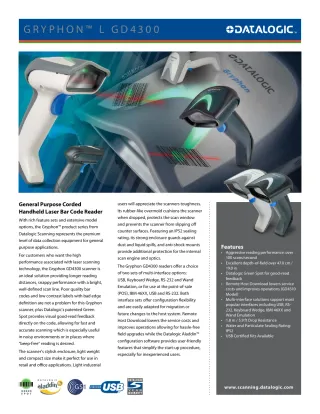
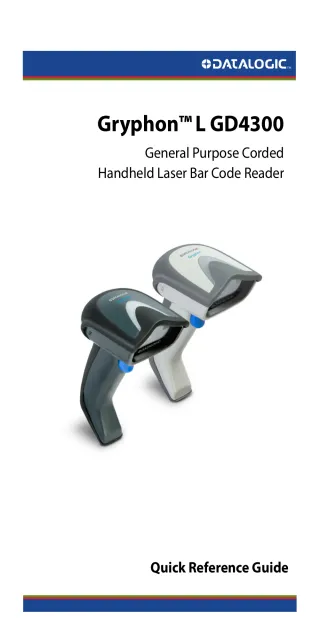
Gryphon L GD4300 General Purpose Corded Handheld Laser Bar Code Reader Quick Reference Guide
Manual32 pagesPDF 2.4 MB
Quick reference guide for the Datalogic Gryphon L GD4300 corded handheld laser bar code reader: specifications, hookup, scanning and setup codes.
Covers · 1 model
The models it covers
Summary
What is in it
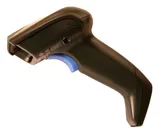
The quick reference guide for the Datalogic Gryphon L GD4300, a general purpose corded handheld laser bar code reader. After the end user license agreement it lists the technical features (size, weight, power, scan angle, depth of field, symbologies, interfaces and operating environment), then shows how to connect the cable and host interface (keyboard wedge, RS-232 or USB), aim and scan, the parts of the reader, scanning modes, cleaning, troubleshooting, LED and beeper signals, bar codes to reset defaults for each interface, and regulatory information.
Its parts
- Software Product Policy
- Technical Features
- Connect/Disconnect Cable
- Connect Host Interface
- Aim and Scan
- Parts of the Reader
- Scanning Modes
- Cleaning
- Troubleshooting
- LED and Beeper Indications
- Programming Barcodes
- Ergonomic Recommendations
- Regulatory Information
- Reader Labeling
From the manual
Key facts from this manual
Each line names its page in the PDF.
Quick Reference Guide for the Datalogic Gryphon L GD4300 corded handheld laser bar code reader, covering the GD4310 and GD4330 models. It gives the technical features, cable and host connection, scanning modes, cleaning, troubleshooting, LED and beeper meanings, and the barcodes that set the interface type or restore factory defaults.
- What it is
- General purpose corded handheld laser bar code reader p. 1
- Interfaces
- RS-232 Std., Wincor-Nixdorf and OPOS; IBM 46xx ports 5B and 9B; USB Com, Keyboard, Alternate Keyboard and OEM; Keyboard Wedge; Wand Emulation p. 10
- Power draw
- GD4330: 260 mA max at 5V±5%; GD4310: 1.2W max in the 4.5÷14V range; standby typical 30mA p. 10
- Power supply
- From the host, or a Class 2 or LPS supply: GD4310 rated 4.5-14, GD4330 rated 5.2V, both minimum 600mA p. 24
- USB default
- Powered by the USB host or hub; defaults to USB keyboard (GD4330) or USB-OEM (GD4310) p. 21
- Light source
- 650nm laser p. 10
- Depth of field
- 5 mil: 1.4" to 6.22" (3.6cm to 15.8cm); 13 mil: 0.87" to 18.7" (2.2cm to 47.5cm); 20 mil: up to 27.1" (69cm) p. 10
- Scan angle
- 47° normal or 35° narrow; pitch ± 50°, skew ± 65°, roll ± 35°; minimum element width 4 mil p. 10
- Symbologies
- UPC/EAN/JAN with add-ons, Code 39, Code 32, Code 128, Interleaved and Standard 2 of 5, Code 11, Codabar, EAN 128, GS1 DataBar and others p. 10
- Scanning modes
- Trigger Single, Trigger Hold Multiple, Trigger Pulse Multiple, Flashing, Always On, Stand Mode p. 14, 15
- Temperature
- Operating 32° to 122° F (0° to 50° C); storage -4° to 158° F (-20° to 70° C) p. 10
- Size and weight
- Height 7.1” / 181mm, length 3.9” / 100mm, width 2.8” / 71mm; about 6.0 ounces/169 g without cable p. 9
- Toughness
- 18 drops from 1.8 meters (5.9 feet) to concrete; IP52; ambient light up to 100,000 Lux p. 10, 11
- Colors
- White/Grey or Black/Grey p. 9
What this manual walks you through
- Connecting the cable and the host interface p. 12, 13
- Choosing a scanning mode p. 14, 15
- Cleaning the scan window and housing p. 16
- Troubleshooting power, decoding and transmission problems p. 17
- Reading the LED and beeper indications p. 18
- Restoring the factory default settings p. 19
- Selecting an RS-232 or IBM interface type with barcodes p. 20
- Selecting a USB interface type with barcodes p. 21
- Selecting a keyboard wedge type with barcodes p. 22, 23
Good to know
- Use only authorized power supplies; others can damage the reader. p. 24
- For USB Power Off Terminal applications, attach only to a USB 1.0, 1.1 or 2.0 host. p. 24
- Do not spray or pour liquids directly onto the reader, and use no abrasive cleaners on the window. p. 16
- Always On mode times out after inactivity (default 5 hours); one trigger pull wakes the scanner. p. 15
- Some interfaces start the scanner disabled; holding the trigger for five seconds allows programming with barcodes. p. 19
Questions this manual answers
How do I reset a Gryphon GD4300 to factory defaults?
Scan the Factory Default Settings barcode in the guide; it restores the factory configuration for the active interface. p. 19
Why does my GD4300 decode a barcode but send nothing to the host?
The reader may not be programmed for the correct host type; scan the matching host type barcode. p. 17
Does the GD4300 need a power supply on USB?
No. On USB it is powered by the USB host or a powered USB hub. p. 21
What does it mean when the GD4300 chirps six times?
It signals a Limited Scanning Label Read. p. 18
What power supply does the GD4310 need?
Power from the host computer, or a Class 2 or LPS power source rated 4.5-14 with a minimum of 600mA. p. 24
Contents
Chapters and sections
Each line opens the PDF at its page.
The whole text · 4 parts
Read the manual here as text
Its text as extracted from the PDF, unedited, in parts; each page opens the PDF at that page.
The file