Manual · Cradlepoint
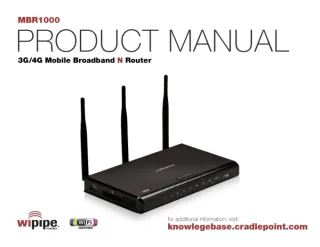
MBR1000 Product Manual: 3G/4G Mobile Broadband N Router
Manual130 pagesPDF 4.3 MB
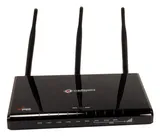
User manual for the CradlePoint MBR1000 3G/4G mobile broadband 802.11n router with wired to cellular failover.
Covers · 1 model
The models it covers
Summary
What is in it
CradlePoint's user manual for the MBR1000 3G/4G Mobile Broadband N Router, written for firmware version 1.6.9. It covers package contents and system requirements, ports and LEDs, quick start with a cellular data modem or a cable/DSL line, and setting up Wi-Fi security. Most of the manual walks through the web administration tabs (Basic, Advanced, Modem, Tools and Status), including failover and load balance, firewall, traffic shaping, GPS, firmware updates and logs, with a glossary and specifications at the end.
Its parts
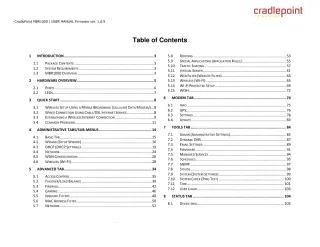
- Introduction
- Hardware Overview
- Quick Start
- Administrative Tabs/Sub-menus
- Basic Tab
- Advanced Tab
- Modem Tab
- Tools Tab
- Status Tab
From the manual
Key facts from this manual
Each line names its page in the PDF.
The CradlePoint MBR1000 User Manual (revision 1.0, June 2010, for firmware 1.6.9) for the MBR1000 3G/4G Mobile Broadband N Router. It explains setup over a cellular modem or a cable/DSL line, Wi-Fi security, failover and load balancing, firmware updates, common problems and the specifications.
- Device
- 802.11n router with failover from a wired line to 3G/4G or WiMax, for small and remote offices p. 5
- WAN ports
- 3G/4G through 2 USB and 1 ExpressCard modem ports; one 10/100 WAN Ethernet port p. 129
- LAN
- WiFi 802.11 b/g/n and four 10/100 Ethernet ports p. 129
- Power
- AC power adapter, 12V 1.5A; 100-240V AC p. 5, 129
- Dimensions
- 7 x 5.6 x 1.2 in. (180 x 142 x 30.25 mm); 12 oz. (340g) p. 129
- Operating temperature
- 0 C to 50 C p. 129
- Buttons
- WiFi on/off switch, WPS button, SGNL (signal strength display) button and Reset button p. 129
- LED indicators
- Power, LAN 1-4, WAN, WPS, WLAN (cellular), MDM (modem), SGNL p. 129
- Modem support
- 100+ HSPA and EVDO devices, USB and ExpressCard; the data modem is not included p. 5, 129
- In the box
- Router, AC power adapter, mounting hardware, CAT5 Ethernet cable, Quick Start Guide p. 5
- Admin page
- http://192.168.0.1 in a web browser p. 11
- Management
- Local or remote by HTTP, HTTPS and SNMP; virtual server (max 32) and DMZ p. 129
- GPS
- Displays, maps and exports GPS data from modems and handsets that provide it p. 78
- System requirements
- Browser of at least Internet Explorer 6.0, Firefox 2.0 or Safari 1.0; Windows 2000/XP/Vista, Mac OS X or Linux p. 5
What this manual walks you through
- Quick setup with a cellular modem or a cable/DSL line p. 10
- Connecting by Wi-Fi and setting up wireless security p. 11, 12
- Fixing a USB modem or phone that does not work, including the WiMAX realm and APN p. 13
- Letting devices such as phones and printers past the login page p. 15
- Setting Ethernet WAN failure detection, failback and the failover order p. 41, 42
- WAN load balancing p. 42
- Upgrading router firmware and the WiMAX modem driver p. 93, 94
- Saving and restoring the configuration, factory defaults and reboot p. 101
Good to know
- Using a power adapter other than the one provided may damage the router. p. 5
- Failover and failback need an active data modem attached. p. 10
- A modem must be supported on the carrier network that provides the service, or it counts as unsupported. p. 13
- Keep power on while new firmware is written; the unit reboots after a 60-second countdown. p. 94
- Restoring factory defaults erases all custom settings. p. 101
Questions this manual answers
Does the Cradlepoint MBR1000 switch to cellular when my DSL goes down?
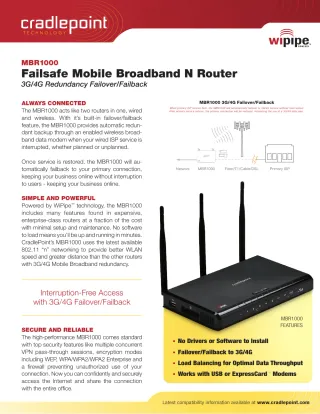
Yes. It fails over from the wired line to a mobile broadband modem and fails back when wired service returns. p. 6
My USB modem does not work with the MBR1000. What should I check?
Check that the modem and carrier are on the supported list, update the modem, set the WiMAX realm or APN if needed, and upgrade the router firmware. p. 13
How do I update the MBR1000 firmware manually?
On Tools, Firmware, browse to the update file, click Upload, wait for the reboot, then confirm the version on Status, Device Info. p. 93
What power supply does the MBR1000 use?
The supplied AC power adapter, 12V at 1.5A. p. 5
Why can't my iPhone or wireless printer get past the MBR1000 login page?
Some devices have trouble with the user login; turn off Require User Login under Tools, User Login. p. 15
The whole text · 13 parts
Read the manual here as text
Its text as extracted from the PDF, unedited, in parts; each page opens the PDF at that page.
The file