


Manual · Cradlepoint
Cradlepoint CBA250 Manual
Manual2 pagesPDF 122 KB
Both pages are below, each with its text.
Covers · 1 model
The models it covers
From the manual · read page by page
Key facts from this manual
Each line names its page in the PDF.
The two-page Quick Start Guide for the Cradlepoint CBA250 Cellular Broadband Adapter. It shows how to connect power, a USB or ExpressCard cellular device and an Ethernet client, reads the status lights, and gives the steps for a firmware update and a factory reset.
- Device
- Cellular broadband adapter that shares an activated USB or ExpressCard cellular device over Ethernet p. 1
- Ports
- USB slot, ExpressCard slot, Ethernet port p. 1
- Modem support
- The USB or ExpressCard device must be on the supported list p. 1
- Config switch
- O = configuration mode; I = normal mode (pass through) p. 1
- Admin page
- http://192.168.0.1, reached in configuration mode p. 1
- Status lights
- Power, Ethernet, USB status, ExpressCard and a 4-bar signal strength display p. 1
- In the box
- Cellular Broadband Adapter, power adapter, Quick Start Guide p. 1
What this manual walks you through
- Connecting power, the cellular device and a LAN client p. 1
- Reading the status lights p. 1
- Updating the firmware manually from the Admin page p. 1
- Resetting the adapter to factory defaults p. 1
Good to know
- Plug the power adapter into the CBA250 before plugging it into the wall socket. p. 1
- Do not turn off or unplug the adapter while a firmware upgrade runs. p. 1
- A factory reset erases all settings and passwords. p. 1
Questions this manual answers
How do I factory reset a Cradlepoint CBA250?
Unplug it, hold the reset button while plugging it back in, and release when the lights flash, about 10 seconds. p. 1
What does a red USB or ExpressCard light mean on the CBA250?
It signals an unsupported device error; the guide notes the cellular device must be on the supported list. p. 1
How do I get into the CBA250 configuration page?
Set the Config switch to O, connect by Ethernet and browse to http://192.168.0.1. p. 1
Does the CBA250 need to be configured before use?
For most users it works without configuration; configuration mode is for user settings, firmware and modem diagnostics. p. 1
The file
Size and text
Every page · 2
Read it here
Each page as it is printed, and its words beside it, so a phone can search and copy them.
Page1of 2
Open in the PDF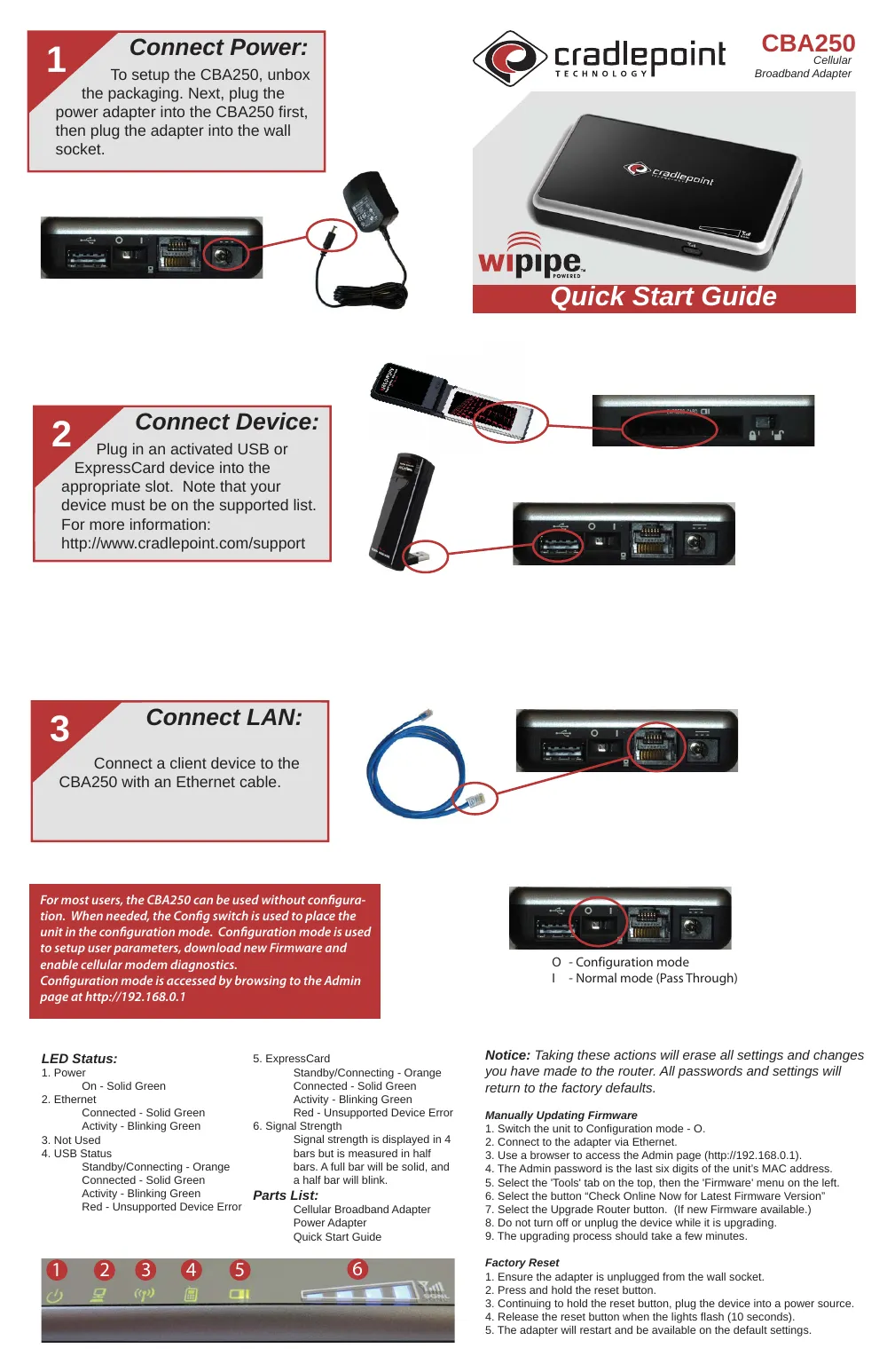
The text of page 1, from the PDF itself
- Connect Power
- CBA250 Cellular
To setup the CBA250, unbox the packaging. Next, plug the power adapter into the CBA250 first, then plug the adapter into the wall socket.
Broadband Adapter1Quick Start Guide
2 Device: 2 1 Plug inConnect an activated USB or ExpressCard device into the appropriate slot. Note that your device must be on the supported list. For more information: http://www.cradlepoint.com/support
2
- Connect LAN
- 3 1 Connect a client device to the 3CBA250 with an Ethernet cable.
For most users, the CBA250 can be used without configuration. When needed, the Config switch is used to place the unit in the configuration mode. Configuration mode is used to setup user parameters, download new Firmware and enable cellular modem diagnostics. Configuration mode is accessed by browsing to the Admin page at http://192.168.0.1
LED Status: 1. Power On - Solid Green 2. Ethernet Connected - Solid Green Activity - Blinking Green 3. Not Used 4. USB Status Standby/Connecting - Orange Connected - Solid Green Activity - Blinking Green Red - Unsupported Device Error
12345
5. ExpressCard Standby/Connecting - Orange Connected - Solid Green Activity - Blinking Green Red - Unsupported Device Error 6. Signal Strength Signal strength is displayed in 4 bars but is measured in half bars. A full bar will be solid, and a half bar will blink.
Parts List: Cellular Broadband Adapter Power Adapter Quick Start Guide
6
O - Configuration mode I - Normal mode (Pass Through)
Notice: Taking these actions will erase all settings and changes you have made to the router. All passwords and settings will return to the factory defaults. Manually Updating Firmware 1. Switch the unit to Configuration mode - O. 2. Connect to the adapter via Ethernet. 3. Use a browser to access the Admin page (http://192.168.0.1). 4. The Admin password is the last six digits of the unit’s MAC address. 5. Select the 'Tools' tab on the top, then the 'Firmware' menu on the left. 6. Select the button “Check Online Now for Latest Firmware Version” 7. Select the Upgrade Router button. (If new Firmware available.) 8. Do not turn off or unplug the device while it is upgrading. 9. The upgrading process should take a few minutes. Factory Reset 1. Ensure the adapter is unplugged from the wall socket. 2. Press and hold the reset button. 3. Continuing to hold the reset button, plug the device into a power source. 4. Release the reset button when the lights flash (10 seconds). 5. The adapter will restart and be available on the default settings.
Page2of 2
Open in the PDF
The text of page 2, from the PDF itself
Quick Start Guide - Continued
FCC Statement: This equipment has been tested and founnd to comply with the limits for a Class B digital device, pursuant to Part 15 of the FCC Rules. These limits are designed to provide reasonable protection against harmful interference in a residential installation. This equipment generates, uses, and can radiate radio frequency energy and, if not installed and used in accordance with the instructions, may cause harmful interference to radio communications. However, there is no guarantee that interference will not occur in a particular installation. If this equipment does cause harmful interference to radio or television reception, which can be determined by turning the equipment off and on, the user is encouraged to try to correct the interference by one or more of the following measures:
- Reorient or relocate the receiving antenna
- Increase the separation between the equipment and receiver
- Connect the equipment into an outlet on a circuit different from that to which the receiver is connected
- Consult the dealer or an experienced radio or television technician for help Changes or modifications not expressly approved by CradlePoint, Inc. could void the user’s authority to operate the product. Radio Frequency Interference Requirement - Canada This Class B digital apparatus complies with Canadian ICES003. Cet appareil numérique de la classe B est conforme à la norme NMB-003 du Canada.
http://www.cradlepoint.com