Manual · CoStar
LabelWriter User Manual
Manual38 pagesPDF 2.2 MB
User manual for the Costar LabelWriter XL, XL Plus, BC and BC Plus label printers: setup, loading labels, maintenance and Windows drivers.
Covers · 1 model
The models it covers
Summary
What is in it
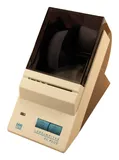
The user manual for the Costar LabelWriter XL, XL Plus, BC and BC Plus desktop label printers. It covers unpacking, placing the printer, its components and controls, connecting power and the serial cable, installing the label guide and loading labels, maintenance and troubleshooting, and ordering more labels. Appendices give printer and serial interface specifications, warranty and service, development tools, the battery pack, installing Windows print drivers and using the LabelWriter with other software.
Its parts
- Labelwriter Printer Setup
- Maintenance and Troubleshooting
- Ordering More Labels
From the manual · read page by page
Key facts from this manual
Some pages are scans or cannot be read; this says only what the readable text supports. Each line names its page in the PDF.
The Costar LabelWriter User Manual for the LabelWriter XL, XL Plus, BC and BC Plus thermal label printers. It covers setting up the printer, loading labels, maintenance and troubleshooting, label sizes, the printer specifications and installing the Windows print drivers.
- Device
- Direct thermal label printer, 203 dots per inch p. 24
- Interface
- Bidirectional RS232 serial, XON/XOFF or CTS, 19200 baud, 8 data bits, no parity p. 24, 32
- Serial cable
- Telephone-like connector at the printer; DB9 and DB25 connectors at the computer end p. 10
- Parallel port
- Connects to a parallel (LPT) port through parallel to serial adapter cable part #60606 p. 11
- Power
- 24 volts AC from the supplied power transformer p. 9, 24
- Print width
- XL and BC: .94 in. maximum; XL Plus and BC Plus: 2.25 in. (56mm) p. 24
- Plus label width
- XL Plus and BC Plus: labels up to 2.44 in. (62mm) wide p. 24
- Paper capacity
- 300 feet of thermal paper or 1200 in. of labels p. 24
- Windows drivers
- Windows 95 and NT drivers on the supplied disk; the LabelWriter XL driver serves the XL, XL Plus, BC and BC Plus p. 30, 34
- In the box
- Printer, serial cable, power transformer, roll of labels, user manual p. 6
- Battery pack
- Optional Costar Battery Pack makes any LabelWriter model portable p. 29
- Development tools
- Programming libraries for Microsoft and Borland C, FoxPro and Clipper p. 28
- Third party software
- Lotus Organizer, ECCO, ACT! for Windows, Telemagic and GoldMine p. 38
What this manual walks you through
- Connecting the power transformer and the serial cable p. 10, 11
- Installing and removing the label guide for narrow labels p. 11, 12
- Loading a label roll and removing an empty one p. 13, 14, 15
- Cleaning the printer inside and out p. 16, 17
- Clearing label jams p. 18
- Solving serial port IRQ and address conflicts p. 18, 19
- Running a self-test and fixing printing problems p. 20, 21
- Installing the print driver in Windows 95 and Windows NT p. 33, 34, 35, 36, 37
Good to know
- Use a Costar serial cable; other cables that look the same will not work. p. 20
- The XL and BC feed wider labels but print only on their left side. p. 21
- Avoid cleaning products that contain ammonia. p. 17
- Other devices such as a mouse, modem, network card or sound card can conflict with the printer's port settings. p. 19
Questions this manual answers
How do I run a self-test on a Costar LabelWriter XL?
With labels loaded and the serial cable unplugged, hold the Form Feed button while turning the printer on; turn it off to end the test. p. 20
What serial port settings does the LabelWriter XL use?
19200 baud, 8 data bits, no parity and XON/XOFF flow control. p. 32
Why is the LabelWriter power light flashing?
Either the labels are jammed or the roll has run out; clear the jam or load a new roll. p. 20
Bar codes printed on my LabelWriter XL do not scan well. What can I do?
Set the Windows print driver to Light: the Darkness Control setting, or Print Density in the Windows 95 driver. p. 18
Can the LabelWriter XL connect to a parallel port?
Yes, through a parallel to serial adapter cable, part #60606. p. 11
The whole text · 4 parts
Read the manual here as text
Its text as extracted from the PDF, unedited, in parts; each page opens the PDF at that page.
The file