


Manual · Code
Code CodeXML M3 Manual
Manual2 pagesPDF 126 KB
Both pages are below, each with its text.
Covers · 1 model
The models it covers
From the manual · read page by page
Key facts from this manual
Each line names its page in the PDF.
A two-sheet quick start guide for the Code CodeXML M3 Bluetooth Multiple Interface Unit (MIU) modem, which lets a Code Reader send data to a computer without drivers. It shows how to install the modem by USB as a keyboard or by RS-232 serial cable, pair a reader with its QuickConnect code, and set the keyboard language and baud rate.
- Device
- External Bluetooth modem that links a Code Reader (CR2 or CR3) to a computer p. 2
- Interfaces
- USB (as a keyboard) or RS-232 serial cable p. 1, 2
- Bluetooth range
- Up to 300 feet (100 meters) p. 2
- Software
- Plug and play; no drivers or software to install p. 2
- Power (RS-232)
- RS-232 cable connects to a power supply plugged into a wall socket p. 1
- Model number
- BTHDG-M3-RO-CX p. 2
- Baud rates
- 9600 (default), 19200, 38400, 57600, 115200 p. 1
- Default serial settings
- Baud rate 9600, parity none, hardware none p. 1
- Keyboard languages
- English (default), Universal, French, German, Japanese p. 1
- Mode codes
- USB Mode M708_01; RS-232 Mode M661_01 p. 1
What this manual walks you through
- Installing the modem on a USB port as a keyboard p. 1
- Installing the modem with an RS-232 cable and power supply p. 1
- Pairing a Code Reader by scanning the QuickConnect Code p. 1
- Switching the modem to USB or RS-232 mode p. 1
- Changing the keyboard language p. 1
- Changing the modem baud rate p. 1
- Reading the modem firmware version string p. 2
Good to know
- The baud rate codes change only the modem, not any settings on the Code Readers. p. 1
- Keep at least 20 cm between the modem antenna and people during operation. p. 2
- The antenna must not be placed together with any other antenna or transmitter. p. 2
Questions this manual answers
How do I pair a Code reader with the CodeXML M3 modem?
Scan the QuickConnect Code on the modem label with the reader. They should connect within 10 seconds; the reader beeps once and the modem LED turns solid. p. 1
What does it mean when the reader beeps four times after scanning the CodeXML M3 code?
Four rapid beeps mean the reader did not connect to the modem. p. 1
Which readers work with the CodeXML M3 modem?
The guide names Code Readers CR2 and CR3. p. 2
Does the CodeXML M3 need drivers?
No. The guide calls it plug and play: plug it in, scan the QuickConnect code and start sending data without drivers or software. p. 2
The file
Size and text
Every page · 2
Read it here
Each page as it is printed, and its words beside it, so a phone can search and copy them.
Page1of 2
Open in the PDF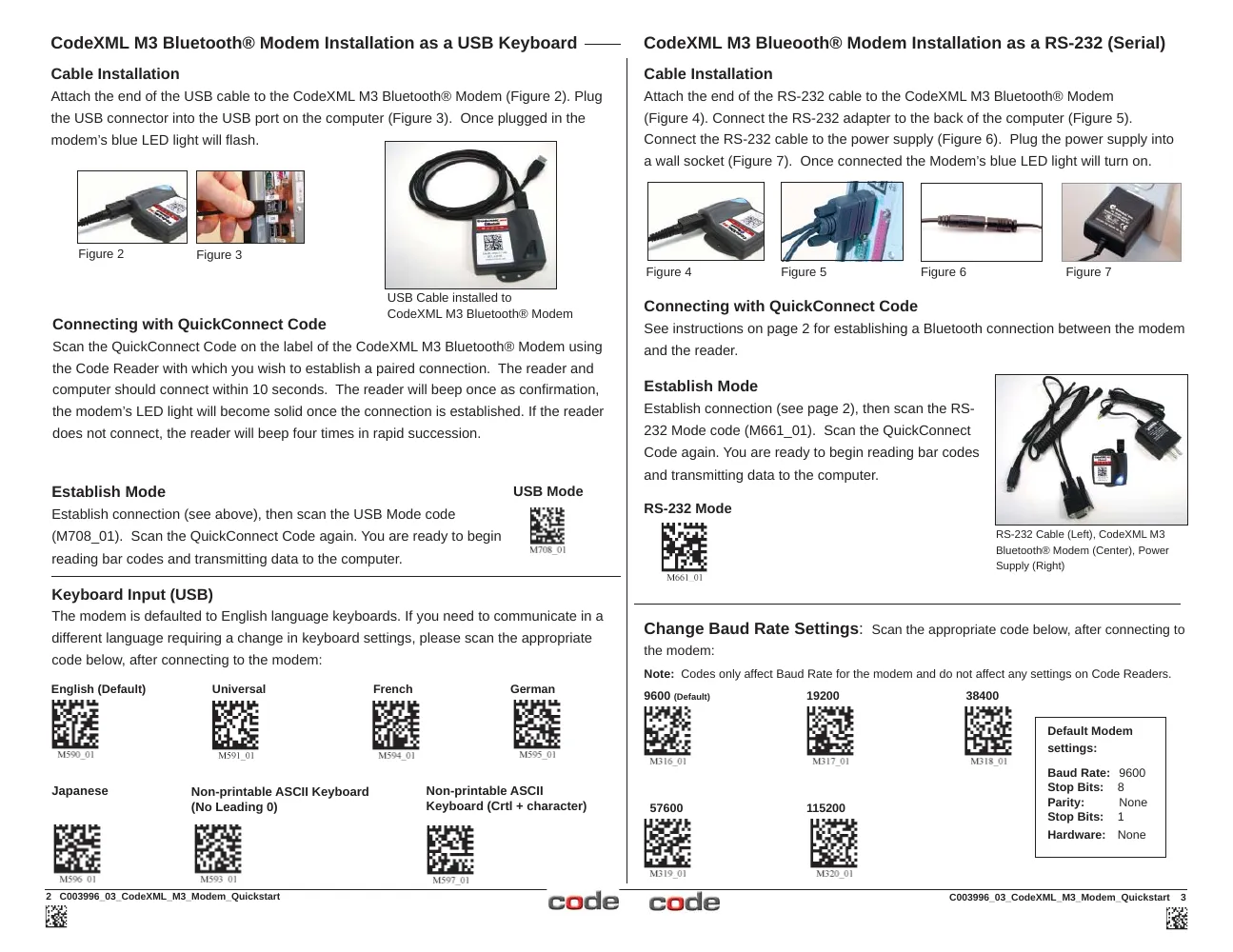
The text of page 1, from the PDF itself
CodeXML M3 Bluetooth® Modem Installation as a USB Keyboard
CodeXML M3 Blueooth® Modem Installation as a RS-232 (Serial)
Cable Installation
Cable Installation
Attach the end of the USB cable to the CodeXML M3 Bluetooth® Modem (Figure 2). Plug
Attach the end of the RS-232 cable to the CodeXML M3 Bluetooth® Modem
the USB connector into the USB port on the computer (Figure 3). Once plugged in the
(Figure 4). Connect the RS-232 adapter to the back of the computer (Figure 5).
modem’s blue LED light will flash.
Connect the RS-232 cable to the power supply (Figure 6). Plug the power supply into a wall socket (Figure 7). Once connected the Modem’s blue LED light will turn on.
Figure 2
Figure 3 Figure 4
Connecting with QuickConnect Code
USB Cable installed to CodeXML M3 Bluetooth® Modem
Figure 5Figure 6Figure 7
Connecting with QuickConnect Code See instructions on page 2 for establishing a Bluetooth connection between the modem
Scan the QuickConnect Code on the label of the CodeXML M3 Bluetooth® Modem using
and the reader.
the Code Reader with which you wish to establish a paired connection. The reader and computer should connect within 10 seconds. The reader will beep once as confirmation,
Establish Mode
the modem’s LED light will become solid once the connection is established. If the reader
Establish connection (see page 2), then scan the RS-
does not connect, the reader will beep four times in rapid succession.
232 Mode code (M661_01). Scan the QuickConnect Code again. You are ready to begin reading bar codes and transmitting data to the computer. USB Mode
Establish Mode
RS-232 Mode
Establish connection (see above), then scan the USB Mode code
RS-232 Cable (Left), CodeXML M3 Bluetooth® Modem (Center), Power Supply (Right)
(M708_01). Scan the QuickConnect Code again. You are ready to begin reading bar codes and transmitting data to the computer.
Keyboard Input (USB) The modem is defaulted to English language keyboards. If you need to communicate in a different language requiring a change in keyboard settings, please scan the appropriate code below, after connecting to the modem:
Change Baud Rate Settings: Scan the appropriate code below, after connecting to the modem: Note: Codes only affect Baud Rate for the modem and do not affect any settings on Code Readers.
English (Default)UniversalFrenchGerman9600 (Default)19200
- 38400 Default Modem settings
- Japanese
Non-printable ASCII Keyboard (No Leading 0)
2 C003996_03_CodeXML_M3_Modem_Quickstart
Non-printable ASCII Keyboard (Crtl + character)
57600
115200
Baud Rate: 9600 Stop Bits: 8 Parity: None Stop Bits: 1 Hardware: None
C003996_03_CodeXML_M3_Modem_Quickstart
3
Page2of 2
Open in the PDF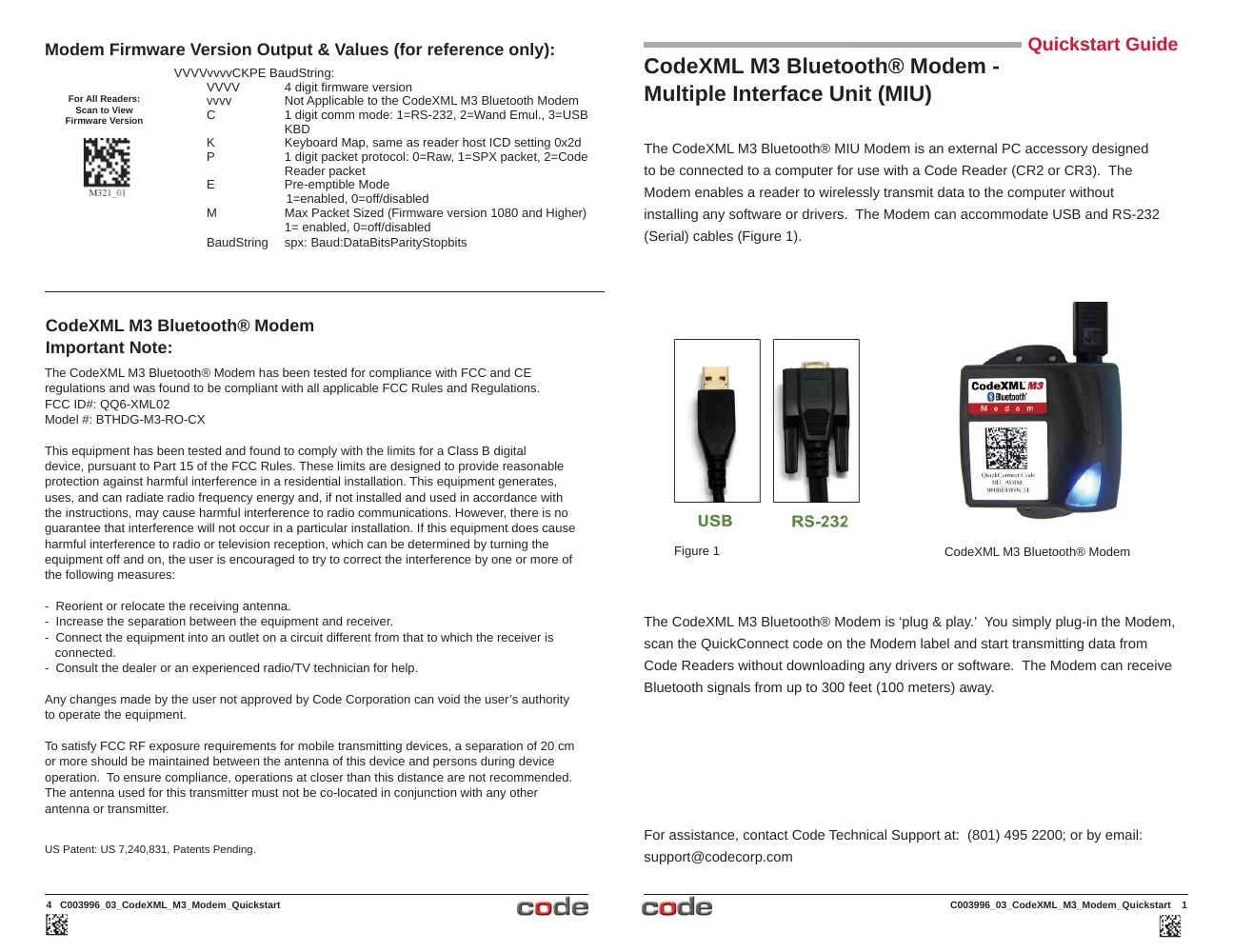
The text of page 2, from the PDF itself
Modem Firmware Version Output & Values (for reference only): For All Readers: Scan to View Firmware Version
VVVVvvvvCKPE BaudString: VVVV 4 digit firmware version vvvv Not Applicable to the CodeXML M3 Bluetooth Modem C 1 digit comm mode: 1=RS-232, 2=Wand Emul., 3=USB KBD K Keyboard Map, same as reader host ICD setting 0x2d P 1 digit packet protocol: 0=Raw, 1=SPX packet, 2=Code Reader packet E Pre-emptible Mode 1=enabled, 0=off/disabled M Max Packet Sized (Firmware version 1080 and Higher) 1= enabled, 0=off/disabled BaudString spx: Baud:DataBitsParityStopbits
Quickstart Guide
CodeXML M3 Bluetooth® Modem Multiple Interface Unit (MIU) The CodeXML M3 Bluetooth® MIU Modem is an external PC accessory designed to be connected to a computer for use with a Code Reader (CR2 or CR3). The Modem enables a reader to wirelessly transmit data to the computer without installing any software or drivers. The Modem can accommodate USB and RS-232 (Serial) cables (Figure 1).
CodeXML M3 Bluetooth® Modem Important Note: The CodeXML M3 Bluetooth® Modem has been tested for compliance with FCC and CE regulations and was found to be compliant with all applicable FCC Rules and Regulations. FCC ID#: QQ6-XML02 Model #: BTHDG-M3-RO-CX This equipment has been tested and found to comply with the limits for a Class B digital device, pursuant to Part 15 of the FCC Rules. These limits are designed to provide reasonable protection against harmful interference in a residential installation. This equipment generates, uses, and can radiate radio frequency energy and, if not installed and used in accordance with the instructions, may cause harmful interference to radio communications. However, there is no guarantee that interference will not occur in a particular installation. If this equipment does cause harmful interference to radio or television reception, which can be determined by turning the equipment off and on, the user is encouraged to try to correct the interference by one or more of the following measures:
- Reorient or relocate the receiving antenna.
- Increase the separation between the equipment and receiver.
- Connect the equipment into an outlet on a circuit different from that to which the receiver is connected.
- Consult the dealer or an experienced radio/TV technician for help. Any changes made by the user not approved by Code Corporation can void the user’s authority to operate the equipment.
Figure 1
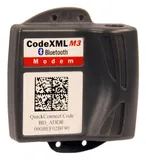
CodeXML M3 Bluetooth® Modem
The CodeXML M3 Bluetooth® Modem is ‘plug & play.’ You simply plug-in the Modem, scan the QuickConnect code on the Modem label and start transmitting data from Code Readers without downloading any drivers or software. The Modem can receive Bluetooth signals from up to 300 feet (100 meters) away.
To satisfy FCC RF exposure requirements for mobile transmitting devices, a separation of 20 cm or more should be maintained between the antenna of this device and persons during device operation. To ensure compliance, operations at closer than this distance are not recommended. The antenna used for this transmitter must not be co-located in conjunction with any other antenna or transmitter.
For assistance, contact Code Technical Support at: (801) 495 2200; or by email: US Patent: US 7,240,831, Patents Pending.
4 C003996_03_CodeXML_M3_Modem_Quickstart
support@codecorp.com
C003996_03_CodeXML_M3_Modem_Quickstart
1