Manual · Cisco
Cisco Aironet 1100 Series Access Point Hardware Installation Guide, Chapter 1: Overview
Manual10 pagesPDF 290 KB
Overview chapter of the Cisco Aironet 1100 Series access point hardware installation guide: autonomous and lightweight models, hardware and networks.
Covers · 1 model
The models it covers
Summary
What is in it
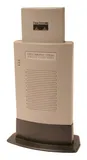
The overview chapter from Cisco's hardware installation guide for the Aironet 1100 Series access point. It explains the autonomous models (AIR-AP1120B, AIR-AP1121G), managed with Cisco IOS software, and the lightweight model (AIR-LAP1121G), configured by a Cisco wireless LAN controller over LWAPP. It describes the radio, Ethernet port, LEDs, power sources, UL 2043 certification and anti-theft features, and shows example networks: root unit, repeater, all-wireless central unit and workgroup bridge.
Its parts
- Overview
From the manual · read page by page
Key facts from this manual
Each line names its page in the PDF.
Chapter 1 (Overview) of the Cisco Aironet 1100 Series Access Point Hardware Installation Guide, OL-4309-07, covering the autonomous models AIR-AP1120B and AIR-AP1121G and the lightweight model AIR-LAP1121G. It describes the radio, Ethernet port, LEDs, power sources and anti-theft features, and shows how the access point fits into common network setups. It helps a technician understand the hardware before installing it.
- Device
- Wi-Fi access point with a single 2.4-GHz mini-PCI radio (IEEE 802.11b or 802.11g), in autonomous or lightweight versions p. 1, 3
- Models
- Autonomous: AIR-AP1120B or AIR-AP1121G (Cisco IOS); lightweight: AIR-LAP1121G (LWAPP, controller-managed) p. 1
- Ethernet
- Auto-sensing RJ-45 port for 10BASE-T or 100BASE-T; can carry inline power p. 3
- Power draw
- Up to 4.9W of DC power p. 4
- Power supply
- Input 100-240 VAC, 50-60 Hz; output 48 VDC, 0.2A minimum p. 4
- Antennas
- Two 2.2-dBi dipole integrated antennas; radio and antennas can be field upgraded p. 3
- Inline power
- Power injector AIR-PWRINJ3= or AIR-PWRINJ-FIB=; inline power switch such as Catalyst 3500XL, 3550, 4000 or 6500; inline power patch panel p. 4
- Connectors
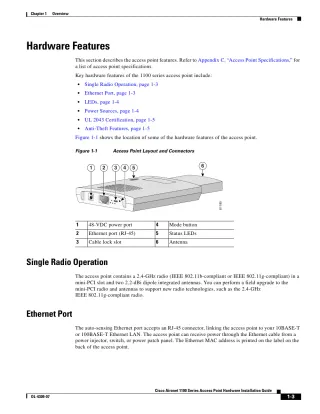
- 48-VDC power port, Ethernet port (RJ-45), cable lock slot, mode button, status LEDs p. 3
- LEDs
- Three on top: Ethernet, status and radio p. 4
- Management
- Autonomous: CLI, browser-based management or SNMP; lightweight: configured by a Cisco wireless LAN controller using LWAPP p. 1
- Autonomous modes
- Root access point, repeater access point, workgroup bridge p. 5
- Anti-theft
- Security cable slot; security hasp for a padlock such as Master Lock 120T or 121T p. 5
- MAC address
- Printed on the label on the back of the access point p. 3
What this manual walks you through
- Telling autonomous and lightweight access points apart p. 1, 2
- How a lightweight access point joins a controller with LWAPP p. 2
- Hardware layout and connectors p. 3
- Reading the Ethernet, status and radio LEDs p. 4
- Choosing a power source: power supply or inline power p. 4
- Securing the access point against theft p. 5
- Network setups: root unit, repeater, all-wireless central unit, workgroup bridge p. 6, 7, 8, 9
- Layer 3 network with lightweight access points p. 9
Good to know
- Only the fiber-optic power injector AIR-PWRINJ-FIB has been tested to UL 2043; other injectors and power modules should not be placed above suspended ceilings. p. 5
- Non-Cisco client devices might have difficulty communicating with repeater access points. p. 7
- A lightweight access point downloads its software from the controller when the versions do not match. p. 2
- The repeater role needs a specific configuration; the default is a root unit. p. 5
Questions this manual answers
What power supply does the Cisco Aironet 1100 use?
A power supply with 100-240 VAC, 50-60 Hz input and 48 VDC, 0.2A minimum output, or inline power over the Ethernet cable. p. 4
What does a blinking green status LED mean on the Aironet 1100?
The access point is operating normally but is not associated with any wireless devices; steady green means at least one client is associated. p. 4
Where is the MAC address on an Aironet 1100?
The Ethernet MAC address is printed on the label on the back of the access point. p. 3
Can the Aironet 1100 work as a repeater?
Yes, an autonomous unit can be set up as a stand-alone repeater, though non-Cisco client devices might have difficulty with it. p. 7
Contents
Chapters and sections
Each line opens the PDF at its page.
The whole text · 1 part
Read the manual here as text
Its text as extracted from the PDF, unedited, in parts; each page opens the PDF at that page.
The file