Manual · CipherLab
9500CE Mobile Computer Reference Manual
Manual123 pagesPDF 5.6 MB
Reference manual for the CipherLab 9500CE Windows CE mobile computer: battery, keypad, wireless setup, applications and scan engines.
Covers · 1 model
The models it covers
Summary
What is in it
The reference manual for the CipherLab 9500CE, a rugged handheld mobile computer running Windows CE 5.0 with Bluetooth, 802.11b/g and GPRS. It explains the battery, memory cards, keypad, touch screen, data capture and cradle, Windows CE basics and ActiveSync, resets and OS upgrades, connection settings (USB, GPRS, Ethernet, WLAN, BTPAN), and bundled applications such as the Bluetooth Manager, Reader Configuration Utility and Backup Utility. Specifications and settings tables for the CCD/laser, LR/ELR laser and 2D scan engines close the book.
Its parts
- Introduction
- Using 9500CE Mobile Computer
- Learning Windows CE Basics
- Personalizing 9500CE Mobile Computer
- Using Applications
- Specifications
- Scan Engine Settings
- CCD/Laser Scan Engine
- LR/ELR Laser Scan Engine
- 2D Scan Engine
From the manual
Key facts from this manual
Each line names its page in the PDF.
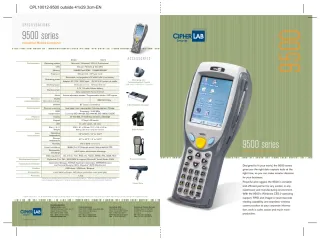
Reference manual (version 2.07) for the CipherLab 9500CE, the Windows CE 5.0 version of the 9500 mobile computer. It covers the batteries, memory and card slots, charger and cradle, resets and OS upgrades, the specifications and the RFID tags the reader supports.
- Device
- Rugged handheld computer for data collection, built for all-day use in harsh environments p. 11
- OS and CPU
- Microsoft Windows CE 5.0; Intel PXA270 at 520 MHz p. 95
- Flash memory
- 128 MB non-volatile NAND flash; part of it is the DiskOnChip storage folder p. 24, 95
- Card slots
- One SD slot; one CompactFlash Type II slot for a memory or peripheral card such as GPRS p. 95
- Wireless
- Built-in Bluetooth Class 2 and 802.11b/g; GPRS module as an ordering option p. 95
- Scan engine options
- CCD (linear imager), standard laser, long range laser, extra long range laser or 2D imager p. 95
- RFID reader
- 13.56 MHz; ISO 15693, Icode, ISO 14443A and ISO 14443B tags p. 95, 102
- Main battery
- Rechargeable Li-ion, 3.7 V, 4000 mAh p. 96
- Working time
- 21 hours batch mode, 20 hours Wi-Fi mode, with backlight (laser, one scan per 5 seconds) p. 96
- Display
- 3.5" transflective TFT-LCD touch screen, 65536 colors, QVGA (320 × 240), LED backlit p. 96
- Keypad
- 27 keys, alphanumeric layout, LED backlit p. 96
- Cradle ports
- USB 1.1 host (type-A) and device (type-B) ports; 10/100BASE-TX Ethernet p. 95
- Size and weight
- 230 x 91 x 63 mm; approx. 600 g with battery and laser engine p. 96
- Operating temperature
- -10°C to 50 °C p. 97
What this manual walks you through
- Installing the hand strap or the pistol grip p. 13, 14
- Using the 4-slot battery charger and reading its LEDs p. 15
- Installing the battery and switching on backup battery charging p. 19, 20
- First charge of the main and backup batteries p. 21
- Saving battery power with the power schemes p. 22
- Checking storage space and fitting an SD or CF card p. 23, 24
- Using the cradle, its status LEDs and ports p. 33, 34
- Software and hardware reset, and Auto Run at boot p. 50, 51
- Upgrading the OS image p. 52
- RFID tags tested with the reader p. 102
Good to know
- A hardware reset restores factory settings and erases SDRAM; only files in the flash file system are kept. p. 50
- An OS upgrade erases everything on the unit, and an older image cannot be loaded afterward. p. 52
- The charging devices do not charge above 40°C; room temperature (18°C to 25°C) is recommended. p. 15
- Backup battery charging is switched off for shipment by a DIP switch in the battery compartment. p. 19
- The package has no charger; a charging cradle is bought separately. p. 18
Questions this manual answers
What battery does the CipherLab 9500 use?
A rechargeable 3.7 V, 4000 mAh Li-ion pack that charges in about 4 hours. A 3.7 V, 110 mAh backup cell keeps data for at least 6 hours without it. p. 19
How do I reset a frozen CipherLab 9500?
For a software reset press the [Reset] button with the stylus. A hardware reset is [Reset] plus [Power] together; it restores factory settings and erases SDRAM. p. 50
What memory cards does the 9500 take?
It has two card slots, one SD and one CompactFlash Type II, under the top enclosure. p. 23, 24
Why does the 9500 backup battery not charge?
The DIP switch inside the battery compartment must be slid to the ON position before the backup battery can charge. p. 21
What ports are on the 9500 cradle?
A USB device port for ActiveSync with a computer, a USB host port for a keyboard, mouse, card reader or storage device, and an Ethernet port. p. 34
Contents
Chapters and sections
Each line opens the PDF at its page.
The whole text · 17 parts
Read the manual here as text
Its text as extracted from the PDF, unedited, in parts; each page opens the PDF at that page.
- IMPORTANT NOTICES1-4
- RELEASE NOTES5-10
- INTRODUCTION11-18
- 1. USING 9500CE MOBILE COMPUTER, pages 19 to 2619-26
- 1. USING 9500CE MOBILE COMPUTER, pages 27 to 3427-34
- 2. LEARNING WINDOWS CE BASICS, pages 35 to 4335-43
- 2. LEARNING WINDOWS CE BASICS, pages 44 to 5244-52
- 3. PERSONALIZING 9500CE MOBILE COMPUTER, pages 53 to 6053-60
- 3. PERSONALIZING 9500CE MOBILE COMPUTER, pages 61 to 6861-68
- 4. USING APPLICATIONS, pages 69 to 7769-77
- 4. USING APPLICATIONS, pages 78 to 8678-86
- 4. USING APPLICATIONS, pages 87 to 9487-94
- SPECIFICATIONS95-98
- SCAN ENGINE SETTINGS99-102
- CCD/LASER SCAN ENGINE103-108
- LR/ELR LASER SCAN ENGINE109-114
- 2D SCAN ENGINE115-123
The file