Manual · AML
M7140 Desktop Terminal User's Guide
Manual56 pagesPDF 2.5 MB
User's guide for the AML M7140 Linux desktop terminal: keyboard, display, optional radio and scanner, menus and server login.
Covers · 1 model
The models it covers
Summary
What is in it
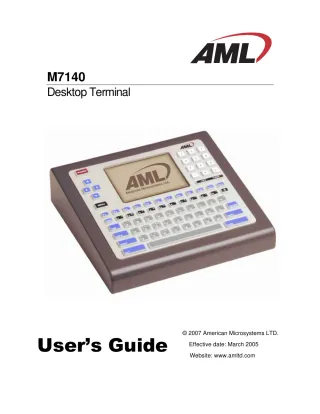
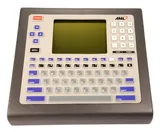
American Microsystems user's guide for the M7140 desktop terminal, a compact Linux-based data collection terminal. It describes the seventy-seven key keyboard and key values, the grayscale graphical display, the optional 802.11b radio, tethered scanner and mounting bracket, the back panel and communication ports, logging in to a server with CommandLink software, Telnet and terminal emulation, the built-in menu system (network, radio, diagnostics, serial port, tools) and advanced features such as FTP, the web server and memory allocation.
Its parts
- Introducing the M7140
- M7140 Terminal Overview
- The M7140 Server Login
- The M7140 Menu System
- The M7140 Advanced Features
From the manual
Key facts from this manual
Each line names its page in the PDF.
The AML M7140 Desktop Terminal User's Guide, effective March 2005. It describes the 77-key keyboard, the display, the back-panel ports and their pinouts, the optional 802.11b radio, tethered scanner and mounting bracket, and how the terminal logs in to a host server. It also explains terminal emulation, firmware updates, serial port setup and the standard and expanded memory versions.
- Device
- Compact desktop terminal running Linux, with CommandLink software, terminal emulation and BASIC p. 4
- Keypad
- 77 keys in white, grey, blue, red and black groups; function keys F1 to F12 and a menu key p. 6
- Display
- 320 by 240 pixel grayscale graphical LCD with a contrast knob on the back; not a touch screen p. 9
- Power
- Approved supply rated 5 VDC, minimum 2 Amps; 2.1mm x 5.5mm barrel connector, center positive p. 16
- Serial ports
- Two RS-232 DB-9 male ports wired as DCE; pin 9 gives 5 VDC scanner power p. 18
- Serial settings
- Port use Open, Barcode Scanner, Serial Printer or Linux Console; 300 to 115200 baud; flow control None, RTS/CTS or Xon/Xoff p. 42
- USB port
- USB Type II slave port for loading the operating system from a PC; cannot drive printers or scanners p. 18
- I/O connector
- DB-15 male with inputs 0 to 2 (A and B pins) and relays 0 to 2, each with NO, NC and contact pins p. 16
- Other ports
- Audio port, external Compact Flash port and RJ-45 Ethernet port p. 15, 17
- Radio
- Optional 802.11b radio and antenna; typical range 500 feet in free air; falls back from 11 to 5.5, 2 and 1 Mbps p. 10
- Memory
- Standard: 4 MB flash, 16 MB RAM; expanded memory version: 16 MB flash, 32 MB RAM p. 51, 52, 53
- Terminal emulation
- amlterm, VT100 and VT220 built in, plus a Custom terminal name; 5250 and 3270 on the expanded memory version with optional software p. 22
- Tethered scanner
- Optional; must be a decoded serial keyboard wedge with its own external power supply, on a port set to scanner p. 13
- Firmware
- Bootloader (factory only), RAM Disk Image and Linux Kernel; updated from a web browser over the network, or with the AML USB Flash utility p. 18, 23, 40
What this manual walks you through
- Using the keyboard and its key values p. 6, 7, 8
- Installing an optional tethered scanner p. 13
- Installing the mounting bracket on a wall or desk p. 14
- Wiring the back-panel connectors p. 15, 16, 17
- Logging in to a CommandLink host server p. 19, 20, 21
- Switching between virtual consoles p. 21, 22
- Choosing a terminal emulation p. 22
- Updating the firmware from a web browser p. 23
- Configuring the serial ports p. 42
- Using the links web browser on the expanded memory version and starting it at power-up p. 53, 54, 55
Good to know
- The display is not a touch screen; do not use sharp objects on its window. p. 9
- Do not turn the terminal off until a firmware flash has finished. p. 23
- Use only M7140 firmware in this unit. p. 40
- Only the jffs2 folder keeps user files when the power is turned off; RAM contents are lost. p. 51
- Without a wireless access point, or without an active server, the terminal goes no further than its waiting screen. p. 20
Questions this manual answers
What power supply does the AML M7140 need?
An approved supply rated 5 VDC at a minimum of 2 Amps, with a 2.1mm x 5.5mm barrel connector, center positive. p. 16
Can I plug a USB scanner into the M7140?
No. The USB port is a slave port for loading the operating system from a PC; external scanners connect to the RS-232 ports. p. 18
How do I update the firmware on an M7140?
With the unit on the same network as the PC, type its IP address into a web browser, choose Reprogram Device Firmware, attach the files and click Submit. p. 23
M7140 RS-232 port pinout
Both DB-9 male ports: 1 DCD, 2 RxD, 3 TxD, 4 DTR, 5 GND, 6 DSR, 7 RTS, 8 CTS, 9 5 VDC out. p. 16, 17
Where can files be saved on the M7140 so they survive power off?
Only in the jffs2 folder of the flash memory; RAM is lost when the unit is powered off. p. 51
The whole text · 6 parts
Read the manual here as text
Its text as extracted from the PDF, unedited, in parts; each page opens the PDF at that page.
The file